
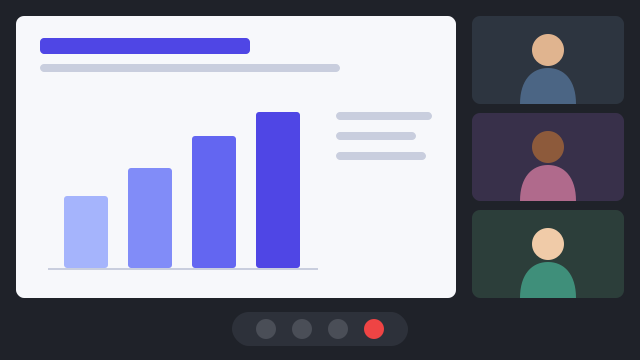
締め切りを金曜日に延ばせますか?
Can we move the deadline to Friday?
Meetings with teams abroad
On Zoom, Teams or Google Meet. No bot to invite and no paid meeting plan needed. Keep your slides open and follow along with captions on top.
We're getting ready to launch. Details and prices may change.
 Overlatorthe overlay translator
Online meetings, classes, videos, calls with friends, game voice chat. Overlator is an overlay translator for Windows: it translates the foreign languages you hear on your PC and shows them at the very front of your screen. No bots to invite and nothing for the other person to set up. Read while you work, and have your own words translated and spoken, too.
No sign-up or card needed: you'll be able to try it for about 25 to 60 minutes. Windows 11 (22H2 or later) only.
締め切りを金曜日に延ばせますか?
Can we move the deadline to Friday?
Illustration
Uses
締め切りを金曜日に延ばせますか?
Can we move the deadline to Friday?
On Zoom, Teams or Google Meet. No bot to invite and no paid meeting plan needed. Keep your slides open and follow along with captions on top.
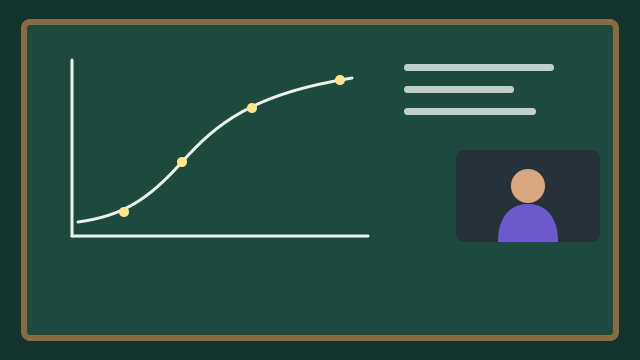
時間とともにどう変わったか見てみましょう。
Let's look at how this changed over time.
Take lectures and webinars in another language, reading as you listen. Missed a line? It's in the history.

今日は旧市街を歩いてみます。
Today we're exploring the old town.
No subtitles? If your PC is playing the sound, it gets translated.
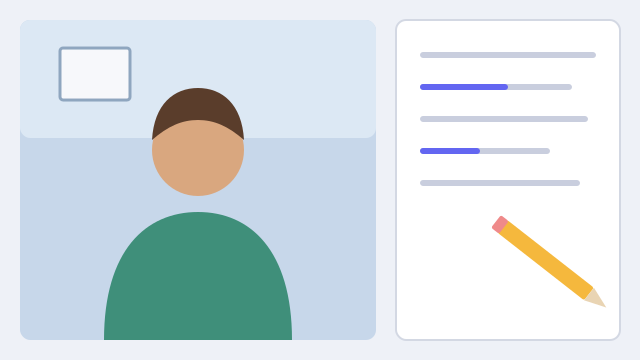
先週末は何をしましたか?
What did you do last weekend?
Show the original next to the translation in online lessons and listening practice, and check what you couldn't catch right away.
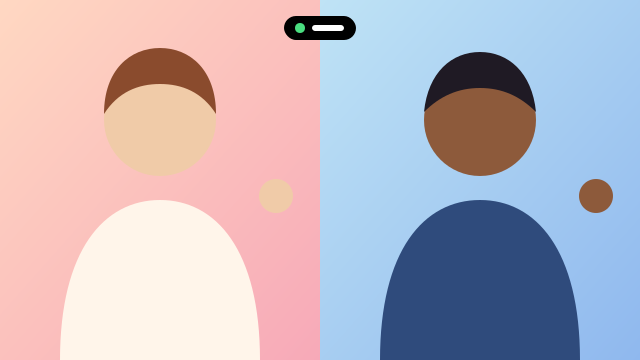
元気にしてた?
How have you been?
On LINE or Discord. Your own words can be translated and spoken, too.
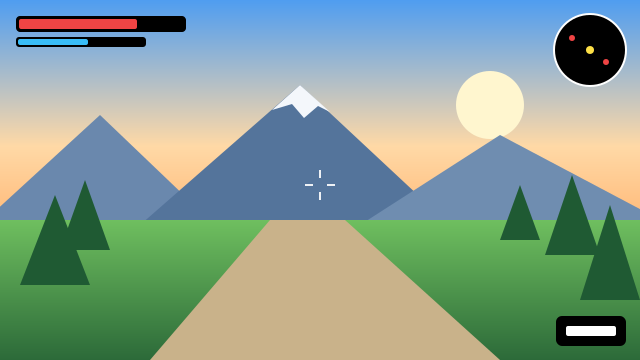
右に敵、回復お願い!
Enemy on the right, need healing!
Playing with teammates from other countries. Captions sit on top of the game without taking your input.
Illustrations only. If your PC is playing the sound, it works the same way in any app.
Features
Windows Live Captions listens to your PC's audio, so there's nothing to set up per app. Call apps, meetings in the browser and videos all work the same way. There's no bot to invite to your meetings, either.
Translations appear in a small window at the very front. Short lines keep the frame small, and clicks pass through the captions, so they never get in the way. To translate calls only, choose "Calls & meetings" on the Home page.
Turn what you say or type into speech in the other person's language and send it into the call. Choose the voice and speed. The app guides you through setting up the virtual microphone (VB-CABLE by VB-Audio) and configures it once installed.
Me: Can you send the report by Thursday?
木曜日までにレポートを送ってもらえますか?
Everything translated since the app started is on the History page. It's never saved to a file and disappears when you close the app.
Your own voice can pass straight through to the call, so you can talk as usual and switch to interpreting with a single key, without changing the microphone in your call app.
Pick fast Haiku, or Sonnet, which is better at fixing speech recognition mistakes. A glossary locks in translations of names, technical terms and game terms, and you can set the tone of your own words.
On your screen
Can we move the deadline to Friday?
Enemy on the right, I need healing.
For games, set the display mode to "Borderless" or "Windowed". Captions can't appear over "Exclusive Fullscreen". Game audio gets captioned too, so turn the game volume down when translating voice chat for better accuracy.
The app
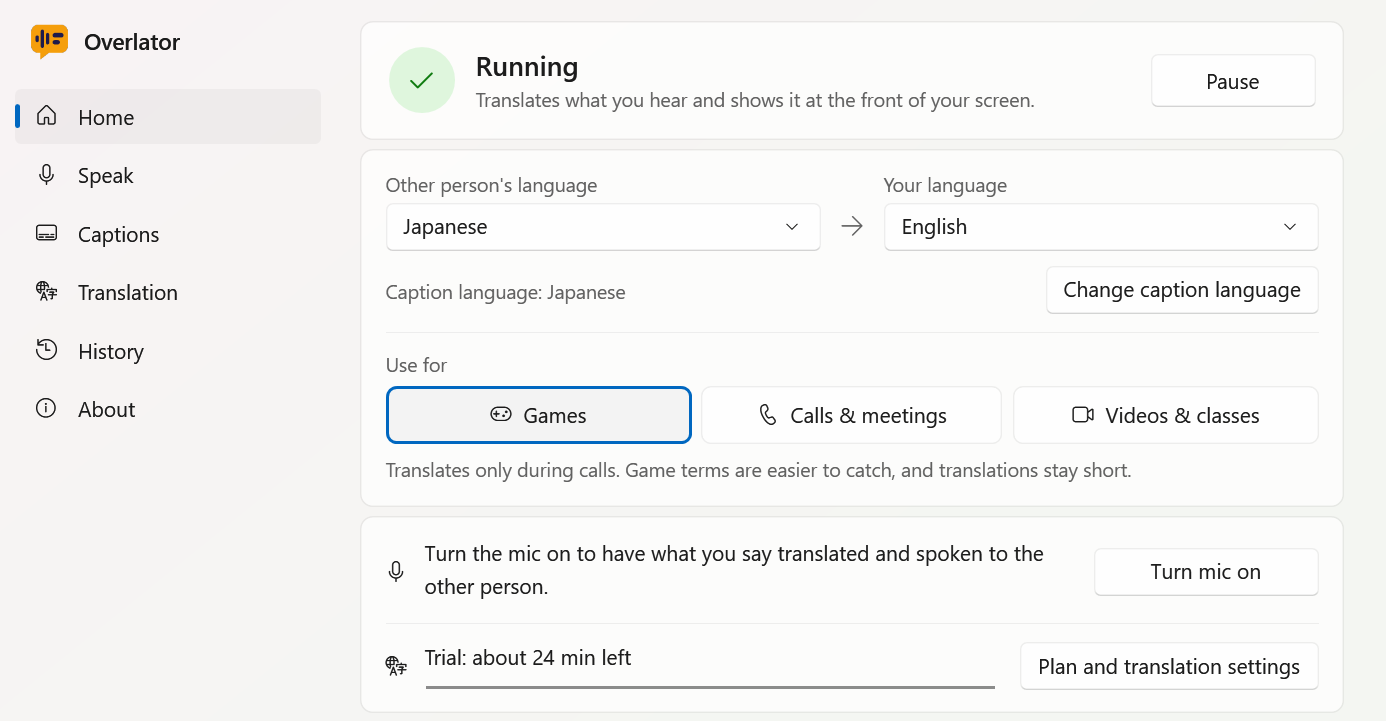
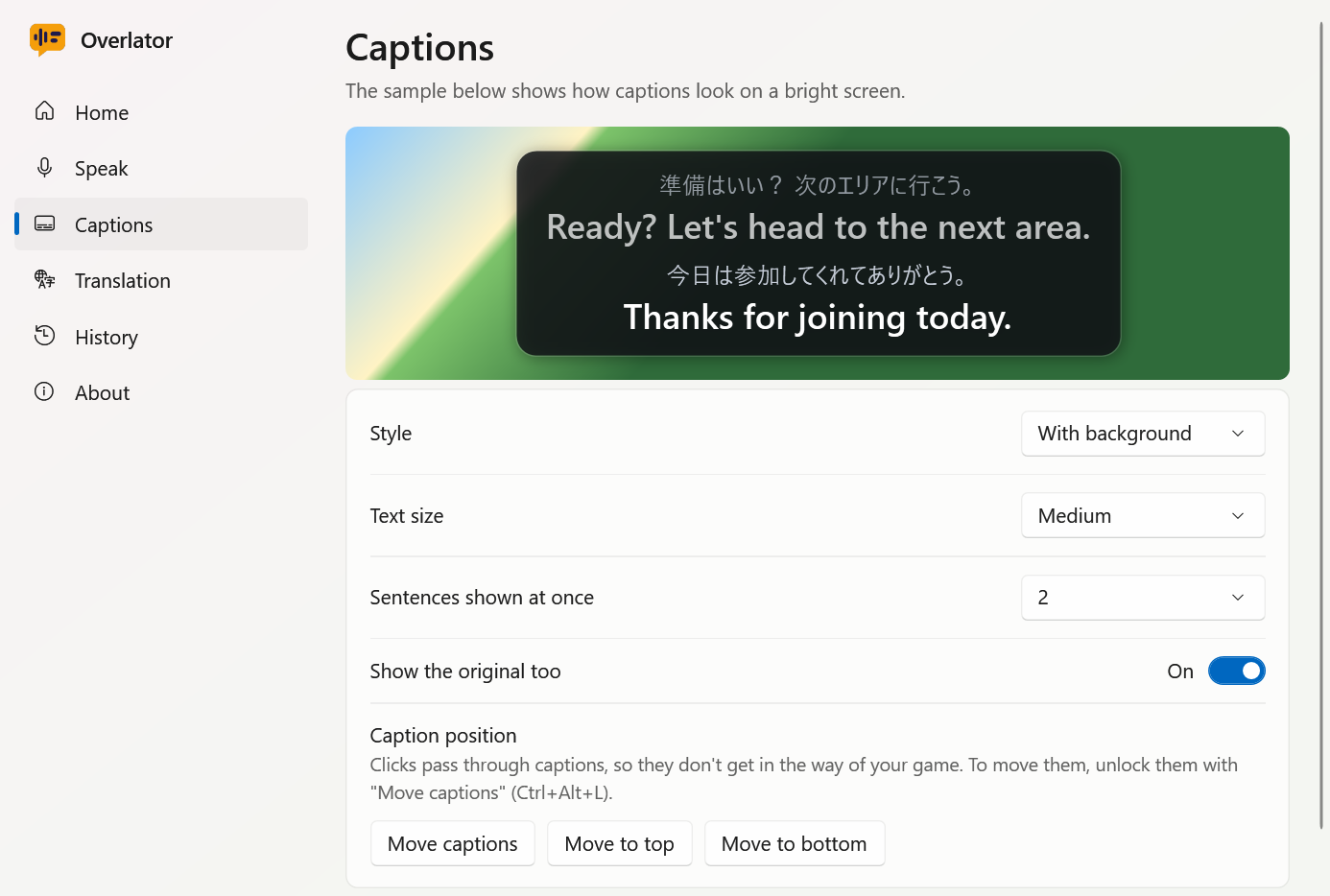
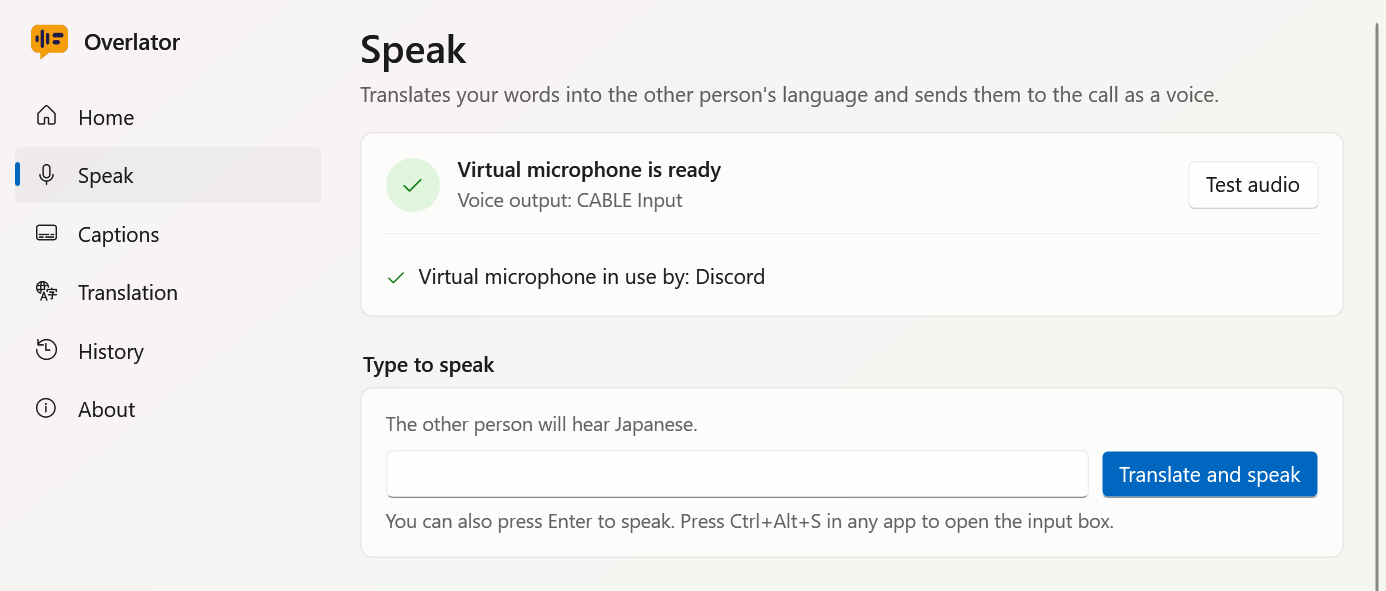
Follows the light or dark setting in Windows.
Pricing
¥1,480 / month
¥2,980 / month
¥4,980 / month
Every plan lets you choose the model, and you can cancel anytime. Hours are estimates for a busy call, where the other person talks half the time and you talk a lot too, with translation of unfinished sentences on (those always use Haiku, whichever model you choose). If people talk half as much, you get more than twice the time. Non-stop speech in videos and classes lasts about the same. Your allowance resets on the 1st of each month.
No sign-up or card needed: about 25 to 60 minutes on Sonnet (once per PC).
Yes. If your PC is playing the sound, videos and streams without subtitles and webinars all get captioned. Choose "Videos & classes" on the Home page.
Caption text leaves your company to be translated (the app and our translation server don't save it). Please check your company's rules on what can be sent outside. Let participants know you're using machine translation where appropriate.
No. You install it on your own PC, so there's nothing for the host or other participants to set up, and you don't need a paid plan for your meeting app.
Yes. Set the game's display mode to "Borderless" or "Windowed". Clicks pass through the captions, so they won't interfere with your controls. Game audio gets captioned too, so turn the game volume down when translating voice chat for better accuracy.
The app doesn't touch the game: it only places a window on top of the screen. That said, it hasn't been checked with every game. Please check each game's rules on external tools.
Captions only appear on your own screen, so nothing shows up on theirs. Let them know you're using machine translation where appropriate. If you use the speaking feature, they'll hear a synthesized voice.
It's Windows only for now. For LINE or Discord calls, make the call in the PC version of the app and it will work.
Neither the app nor our translation server saves captions or translations. Translation is done by Anthropic's Claude. According to Anthropic's public information, API inputs and outputs aren't used to train models by default and are deleted within 30 days (except in cases such as suspected violations of its terms).
Not if you only want to read captions. You only need it to have your own words translated and spoken.
Anytime, from the management page linked in your sign-up email. You can keep using it until the end of the period you've paid for.
One key works on up to 2 PCs. To move to another PC, deactivate it in the app's settings first.
You must be 18 or older. It isn't available in countries and regions where Claude, which does the translating, isn't offered (such as China, Hong Kong and Russia). It isn't offered in the EU, EEA, UK or Switzerland yet.
Once it's out, you'll be able to try it for about 25 to 60 minutes, with no sign-up or card.